
A dialer that stops placing outbound calls is one of the most disruptive problems a contact center floor in Manila, Cebu, or Davao can run into. Agents are logged in, the campaign shows as active, and yet the VICIdial Not Calling happens. Before assuming the system is broken, it helps to know that VICIdial is really three connected layers working together: campaign configuration, the lead hopper, and the dial engine that actually places the call.
When outbound dialing stops, the reason is almost always sitting in one of these three places, not in some single mysterious fault.
This guide walks through each layer in the order a support engineer would check them, using real configuration examples, a few SQL queries you can run directly against the VICIdial database, and the exact admin screens where each fix is made.
Why outbound dialing stops even when everything looks normal
From an agent’s chair, a stalled dialer looks like one problem. From the backend, it is usually a mismatch between three independently configured pieces. The campaign defines how and when calls should be placed. The hopper is the working queue of leads that are actually eligible to be dialed right now.
The dial engine, whether running in ratio, adaptive, or manual mode, is what turns an eligible lead into an actual Asterisk call leg. A misconfiguration in any single layer stops calls, while the other two layers can look perfectly healthy, which is exactly why troubleshooting by guesswork wastes time.
The fastest path to a fix is to check these three areas in sequence: campaign settings first, hopper status second, and call reports last to confirm whether the fix actually restored dialing.
Start at Campaign Settings, since a single field can halt dialing
Go to Campaigns, open the campaign in question, and click Edit Campaign. This screen controls how aggressively (or whether at all) the system dials on behalf of that campaign.
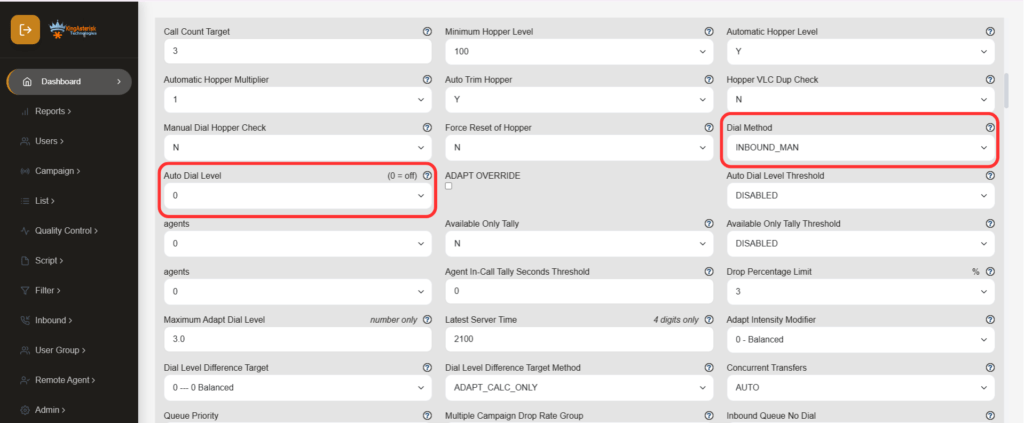
The single field that causes the most support tickets is Auto Dial Level. Consider this real diagnostic case:
SELECT user,status,campaign_id
FROM vicidial_live_agents;

Returns:
TEST_AGENT | PAUSED | SAMPLE_CAMPAIGNChecking the campaign configuration for SAMPLE_CAMPAIGN shows the actual cause:
Campaign: SAMPLE_CAMPAIGN
auto_dial_level = 0An auto_dial_level of 0 tells the predictive dialing engine not to place any calls on top of what agents dial manually. If the campaign is set to a ratio or adaptive dial method but the dial level is 0, or the ratio has been reset during a configuration change, the dialer will sit idle even with agents logged in and available.
Set the dial level to a working value for the campaign’s dial method, save, and confirm the agent status moves out of PAUSED once a lead is presented.
Other campaign fields worth checking in the same screen: Dial Statuses (the list statuses eligible to be dialed), Local Call Time (which can silently block dialing outside a permitted window, an easy mistake when a Philippines-based team is dialing leads on a US or Australian time zone), and Hopper Level, which caps how many leads are pulled into the working queue at once.
Why are my leads not loading into the VICIdial hopper?
The hopper is the live queue VICIdial Not Calling pulls from when it dials. If the campaign configuration is correct but the dialer still has nothing to call, the hopper is usually empty or nearly empty. Go to Campaigns – Hopper / Lead Hopper to inspect what is currently loaded for the campaign.
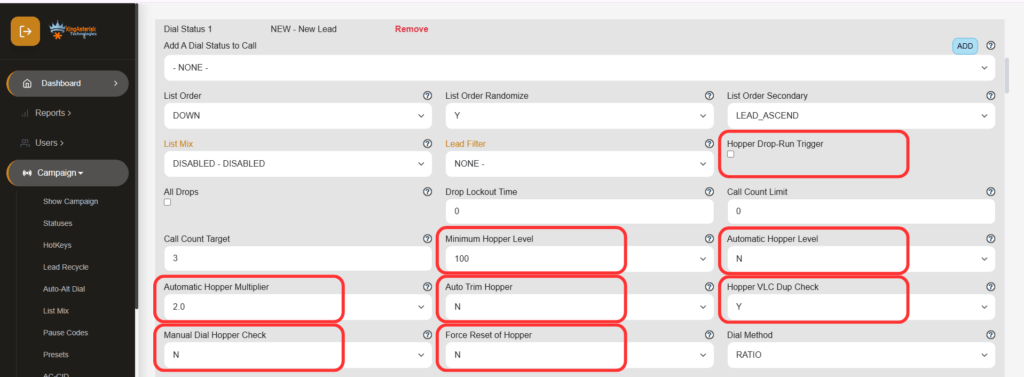
The most common reasons leads fail to reach the hopper:
- The list is not attached to the campaign, or is attached but marked inactive.
- The lead’s current status is excluded from the campaign’s Dial Statuses setting, so the hopper refresh skips it entirely.
- A calldate or callback time set in the future removes the lead from the eligible pool until that time arrives.
- Local Call Time restrictions exclude the lead’s area code or time zone at the moment the hopper refresh runs.
- The hopper has already been filled to its configured Hopper Level and simply has not been refreshed since leads were last worked.
Because the hopper refresh runs on a schedule, changes to list status or campaign settings are not always reflected instantly. If leads still fail to appear after confirming the list and statuses are correct, a manual hopper reset for the campaign, followed by a fresh refresh, usually resolves it.
How to enable manual dial in VICIdial when the button does nothing
A separate and often more confusing case is manual dialing that silently fails. The symptoms typically look like this: the agent logs in successfully, sees the Dial Next Number button, and clicks it. Nothing happens after that. No outbound call is placed, the screen does not update, and there is no Asterisk originate event and no VICIdial action logged at all.
This is different from a hopper or campaign dial-level problem, because manual dialing bypasses the predictive engine entirely and should not depend on Auto Dial Level. When manual dial produces no server-side action whatsoever, the fault is almost always upstream of the dialing logic itself. Work through these checks in order:
- Confirm the campaign’s Dial Method actually permits manual dialing for the logged-in agent’s session, since some ratio or adaptive configurations restrict the manual dial button to specific user levels or campaign modes.
- Verify the agent’s phone extension is actually registered on the Asterisk server at the moment of login. A stale or unregistered extension will let the agent log into the web interface while the underlying channel has no route to originate a call.
- Check that the phone login used by the agent matches an active extension in the phone configuration, not a duplicate or previously logged-out session still holding the channel.
- Look for a lead genuinely available to the agent’s session. Manual dial with no lead loaded, or a lead outside the campaign’s allowed statuses, will not generate an originate attempt.
- Restart the agent’s phone session and re-login cleanly, since a half-closed prior session on the same extension is a frequent, easy-to-miss cause.
Read the call report before changing anything else
Once campaign settings and the hopper both look correct, confirm the fix, or narrow down what is still broken, using Reports – Call Report.
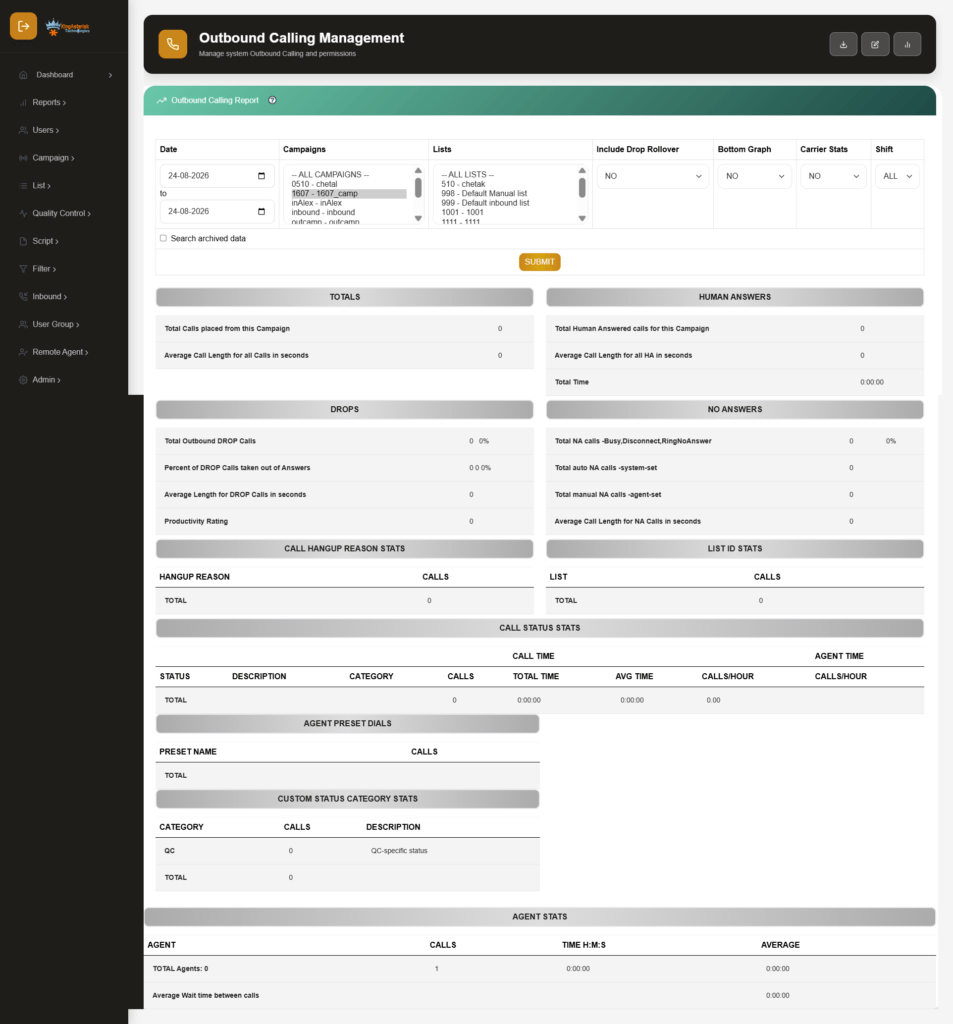
A call report showing zero attempts confirms the dialer never tried to place a call, which points back to campaign settings or the hopper. A call report showing attempts that end immediately, with very short duration and a disposition like busy, no answer, or a carrier-level failure code, points away from VICIdial’s dialing logic entirely and toward the trunk or carrier connection instead.
How do I call back in VICIdial?
Callbacks in VICIdial are tracked as their own record type, separate from the general lead queue, and stored against the lead with a scheduled callback time, the assigned agent, and the originating campaign. A callback becomes visible to an agent once its scheduled time is reached and the agent is logged into the correct campaign.
- Personal callback: set by the agent for themselves during a disposition, so only that agent will see it when it comes due.
- User group callback: assigned to a group of agents, and the first available agent in that group picks it up.
- System callback: scheduled without a specific agent assignment, so it re-enters the general hopper at the scheduled time and dials like any other lead.
If a callback does not appear when expected, check that the scheduled callback time has actually passed, that the agent is logged into the campaign the callback belongs to, and that the lead’s status has not been reassigned or reset since the callback was scheduled.
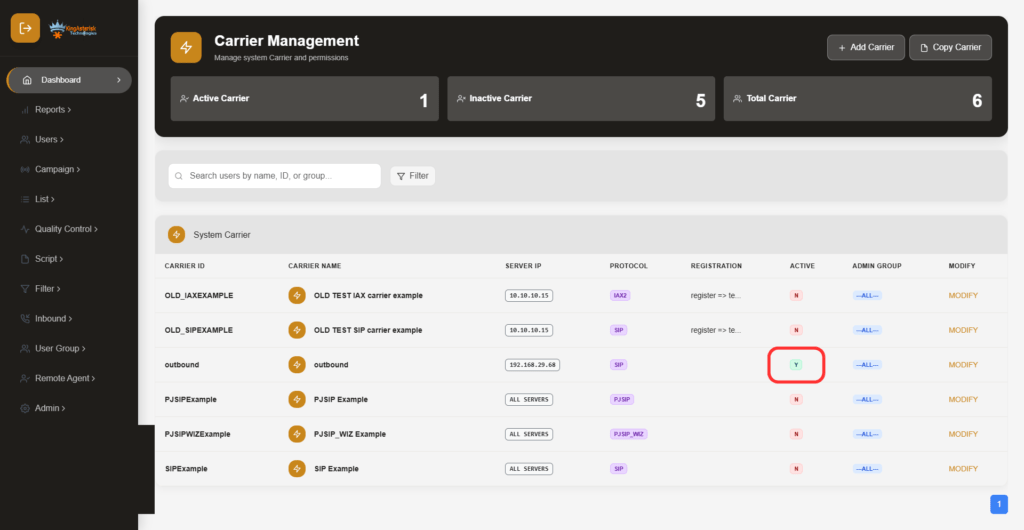
How to listen to live calls when, VICIdial Not Calling
Supervisors and quality teams monitor live calls through the supervisor or admin screen’s monitoring function, commonly reached from the agent or campaign monitoring page rather than the reports section. Selecting an active agent from the live monitor list opens a listen-only session on that agent’s current call without alerting either party.
Monitor (listen only): hear both sides of the call without either party knowing.
Barge (three-way): join the call so all three parties can hear each other, useful for live coaching.
Whisper: speak to the agent only, while the customer continues to hear just the agent.
Live call and agent status data used for monitoring is drawn from the same session table VICIdial Not Calling uses internally to track who is logged in, paused, or on a call, which is why the SQL query referenced earlier against agent status is such a useful first diagnostic step for both dialing issues and monitoring access.
A practical troubleshooting checklist
- Run a live agent status query to confirm agents are logged in and not stuck in PAUSED without a reason.
- Open Campaigns – Edit Campaign and confirm Auto Dial Level and Dial Method match the intended dialing behavior.
- Open Campaigns – Hopper / Lead Hopper and confirm the hopper is actually populated for that campaign.
- Confirm the list is active, attached to the campaign, and that lead statuses are included in Dial Statuses.
- Check Local Call Time restrictions against the time zone of the leads being dialed.
- For manual dial failures, confirm the agent’s phone extension is registered before assuming a VICIdial Not Calling fault.
- Review Reports – Call Reports to see whether calls are being attempted at all, or attempted and failing at the carrier level.
- Only escalate to server-level or telephony troubleshooting once configuration and hopper checks are ruled out.
Frequently Asked Questions
Why are my leads not loading into the VICIdial Not Calling hopper❓
The most common causes are a list that is not attached or inactive, lead statuses excluded from the campaign’s Dial Statuses setting, a future call date, or Local Call Time restrictions blocking the lead’s time zone at the moment the hopper refreshes.
How to enable manual dial in VICIdial❓
Confirm the campaign’s Dial Method allows manual dialing for the agent’s user level, then confirm the agent’s phone system solution extension is actually registered on the Asterisk server. Manual dial failures with no originate event are almost always a phone registration or session issue rather than a dialer logic issue.
How to listen to live calls on VICIdial❓
Use the supervisor or agent monitoring screen to select an active agent and open a listen-only session. Monitor mode is listen-only, barge joins the call as a third party, and whisper lets the supervisor speak to the agent without the customer hearing.
Get outbound dialing back on track
Outbound dialing failures rarely come from a single dramatic fault. They come from a campaign field, a hopper filter, or a phone session quietly out of sync with the rest of the setup, and each one is fixable once it is correctly identified.
KingAsterisk Technologies works with contact center teams across the Philippines, from Metro Manila and Clark to Cebu and Davao, on VICIdial Not Calling configuration, custom campaign logic, and integration work that connects the dialer to the CRM and reporting systems these teams already run on.
If your outbound dialing has stalled and the checks above have not resolved it, our team can review your campaign configuration, hopper rules, and call logs directly and identify the exact point of failure. Reach out to KingAsterisk Technology to get your dialer diagnosed and back to full outbound capacity.